


Znosin brings conversations and the things you do together into one place. Arrange a meeting, explain an idea by voice, share your screen, send a document, receive an email and open a shared task board alongside your chat. For our first story, let's follow a simple example: friends planning a weekend walk.
The screenshots use fictional users and sample conversations. Recordings and the shared display were prepared to demonstrate features. No real private conversations, microphones or user screens are used.
Conversations that keep their context
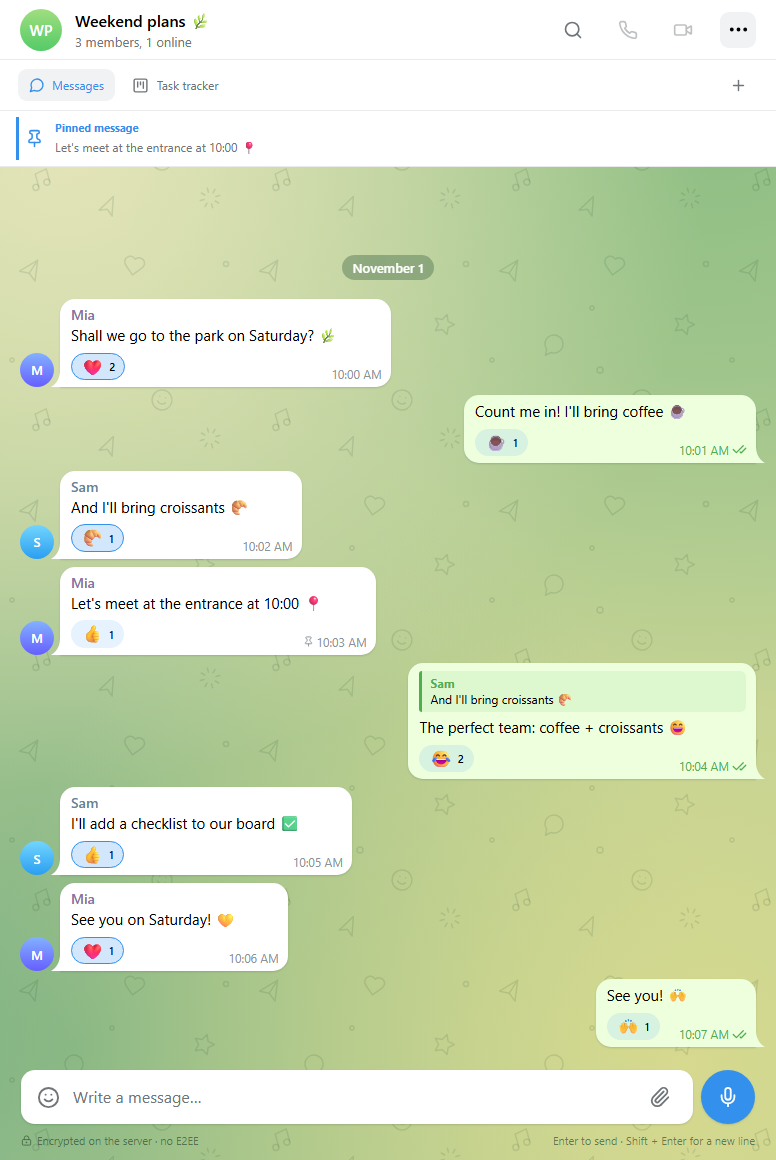
Alex, Mia and Sam are discussing Saturday in a group. One suggests the park, another brings coffee and the third offers croissants. Replying to a particular message makes the connection clear: right-click and choose Reply. Your message includes a quote, so everyone knows what you mean even after the conversation moves on.
Not every message needs a written answer. Add an emoji reaction, or quickly double-click someone else's message to leave a heart. The message menu also offers copying and forwarding. You can edit your own text, and when deleting a message choose whether to remove it just for yourself or for everyone. Two check marks help you see when a message has been read.
Voice notes: record, listen, send
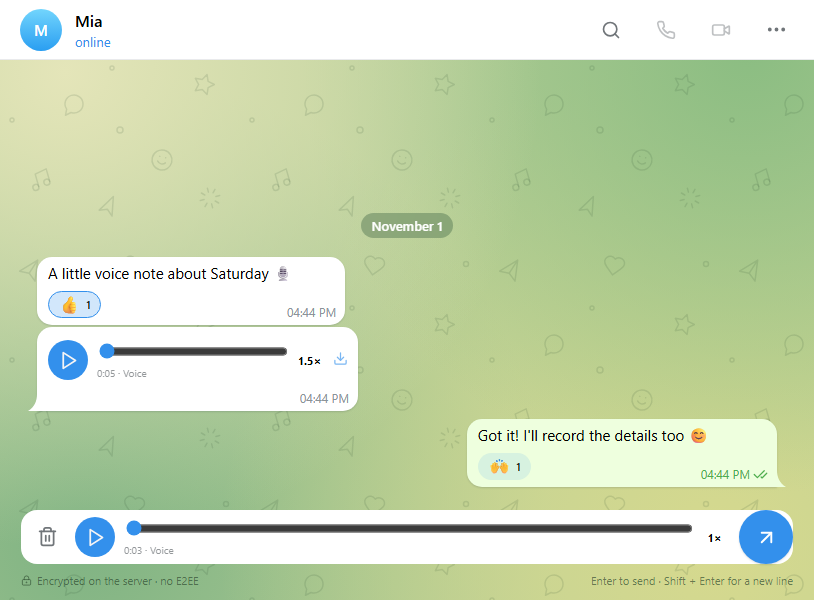
When speaking is easier than typing, use the microphone beside the composer. Stop the recording and listen before sending: check that you included everything, discard an attempt or send the finished message. It's useful for directions, a quick explanation or an idea you want to capture on the move. A recording can be up to five minutes long.
The recipient can listen right inside the conversation without downloading a separate file. Seek to the part you need and switch playback speed between 1×, 1.5× and 2×. To find an explanation again later, open the voice attachments tab in the chat's information panel.
Calls and a screen you can share
Start an audio or video call from the chat header to work through something together. You can turn on your camera during an audio call and turn it off again afterwards. Both participants don't need a working camera: one person can send video while the other responds by voice. Groups also support group calls for shared discussions.
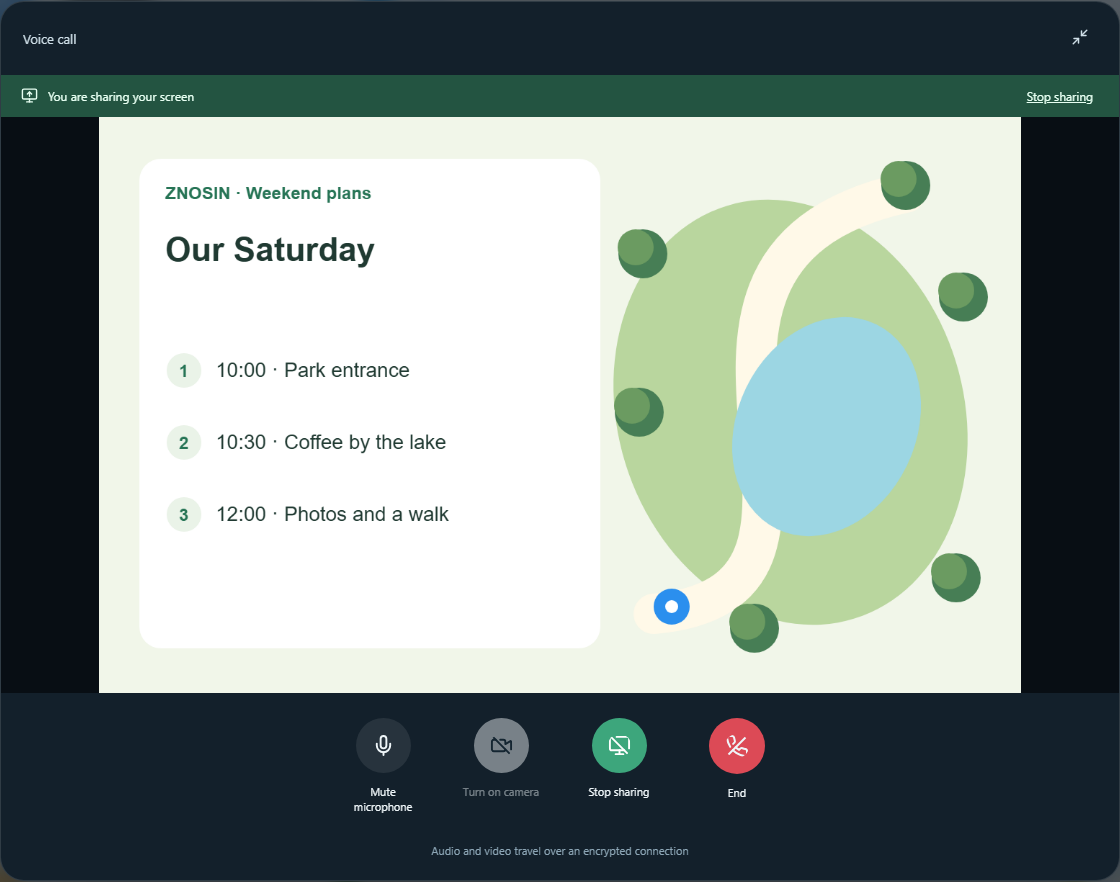
On the web and in the Windows app, you can share your screen or a particular window, including during an audio call. Show the plan for your walk, review a document together or explain where to find a button. You choose what to share and can stop the presentation at any time.
Minimize the call inside Znosin and it stays in a compact bar while you move to email or another tab. Completed, declined and missed calls appear in the conversation itself, beside the messages that came before and after them.
Pictures, pins and shared files
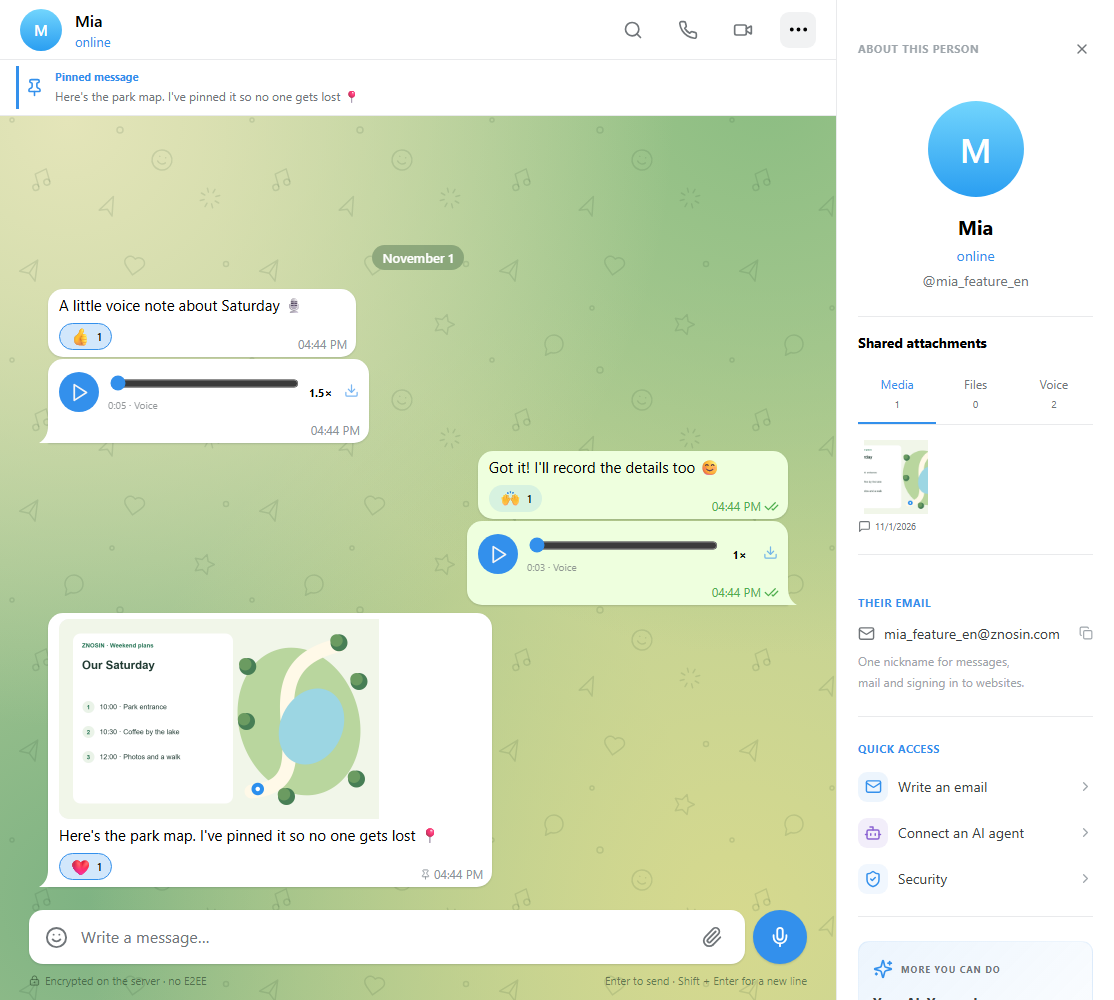
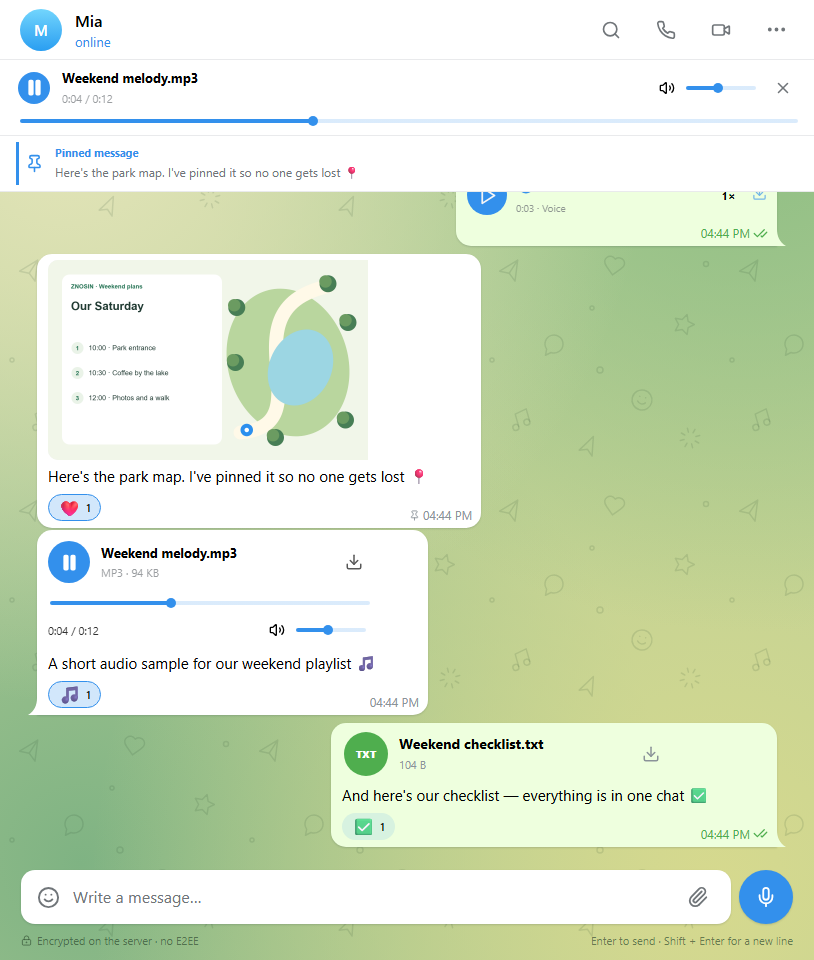
Mia sends a map of the park and pins the message containing it. Now everyone can find the meeting point through the pinned-message bar above the conversation. The same works for a photo, timetable, instructions or an important text message. The pin belongs to the message, keeping its picture, caption and reactions together.
Click the contact's name or avatar to open the chat information panel. Shared attachments separates media, files and voice messages. Open a picture, download a document or jump back to the message it came with. Search in the chat header helps when you remember the words but not when they were sent.
Music that stays with you
Listen to an MP3 directly in a message, with play and pause, seeking, volume controls and a download button. There's no need to save it first and open a separate player. It works for music as well as audio material shared by colleagues.
Once playback starts, a compact player appears below the header. Switching to email or apps doesn't cut off the track. Music pauses during a call or voice recording so the sounds don't compete. The example below uses a short sample audio file and an ordinary checklist attachment.
Groups for friends, teams and communities
Choose a public or private group when creating it; an administrator can also change this in settings. Discuss plans, share files and add apps for working together. A task board can turn “who's bringing coffee?” into a specific assignment.
Pin important conversations in the chat list, mute an individual chat or use the unread filter to catch up. Saved Messages gives your own notes, links and files a personal home: a useful place to keep an idea before sharing it with others.
Personal email with your nickname
An account named @nickname gets the address nickname@znosin.com. Email runs on Znosin's infrastructure, receiving messages from external senders and sending to other email services. You don't need to create a separate mailbox account.
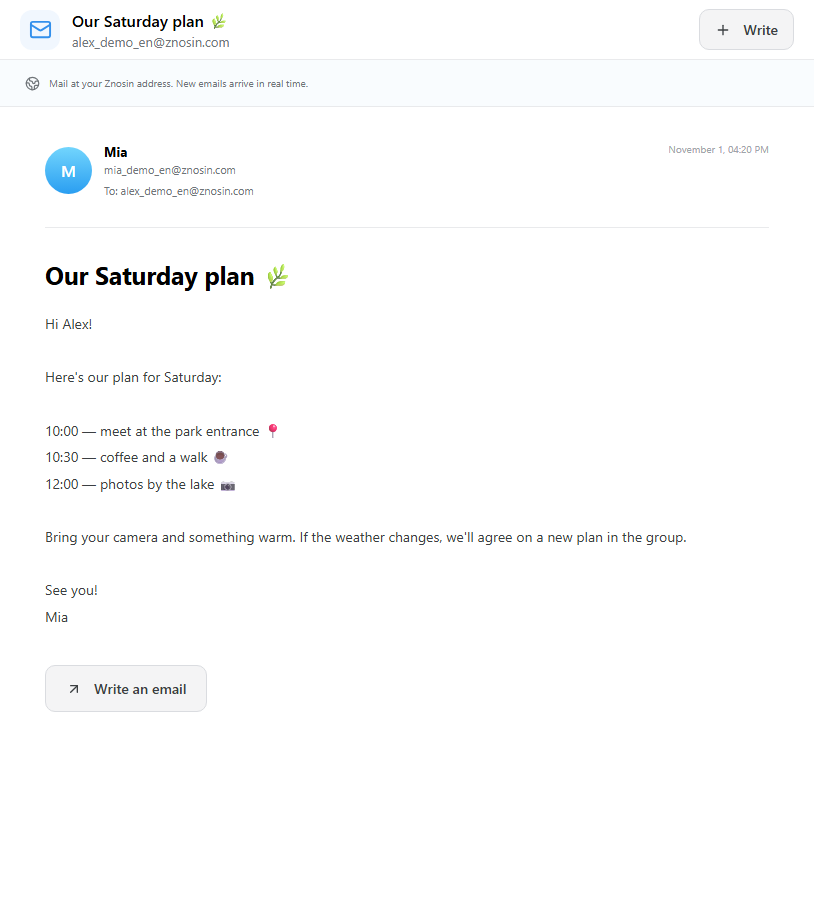
Email has its own tab alongside messages and apps. New messages arrive in the connected client without restarting it. Agree on a meeting in the group, then send the detailed plan by email: a subject, sender and full message give it a separate place you can return to.
Mini apps close to the conversation
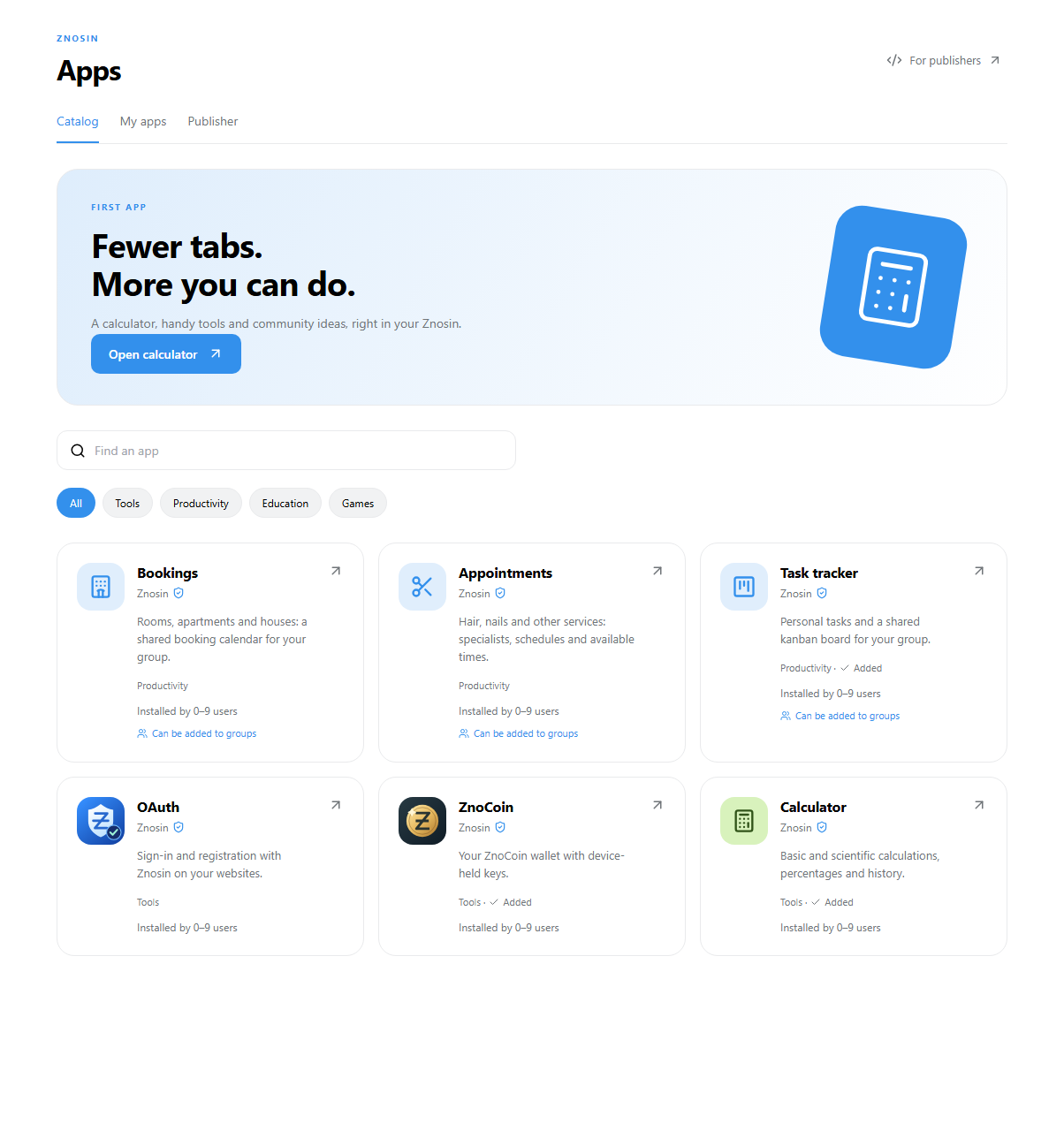
The catalog contains tools and games that open inside Znosin. They include a standard and scientific calculator, a task tracker with a kanban board, accommodation bookings and service appointments. Browse the public catalog without signing in, then add an app to your account.
Some apps work inside groups. An administrator adds the task tracker; members create and edit tasks, while the author or an administrator can delete a task. Discussion and progress on the board stay close together. Private apps are also available for scenarios where only explicitly added users should have access.
Other websites can offer sign-in through Znosin with the user's consent. For automation, AI agents can be given specific permissions: grant a helper the access it needs and revoke it later.
Your language and your way of working
Znosin is available in English, Russian, Ukrainian, German, French, Polish and Simplified Chinese, with an interface that follows your chosen theme. Start with a name and nickname; phone verification is optional. Set a password to preserve access and sign in from another device. Web sign-in also supports a QR code confirmed in the phone app.
Use the web version or download the Windows, Linux or Android app. In this blog, we'll explore individual features, explain changes and share examples. For now, try a conversation: send a voice note, pin an important picture and open an app in your group.
 ZnosinAll news →